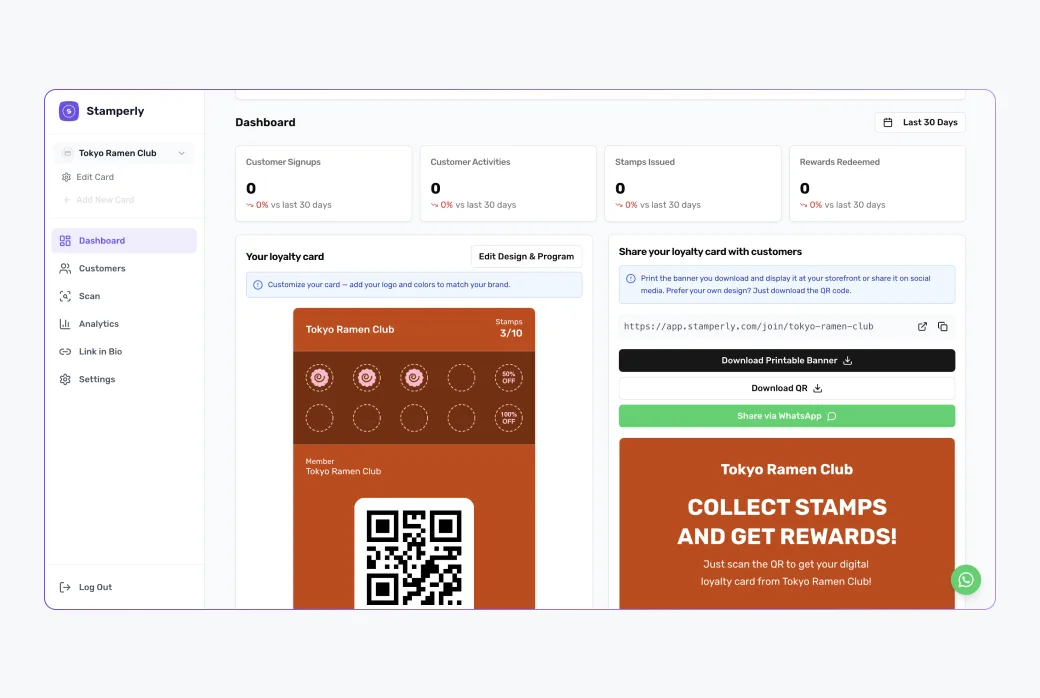
Start a new card
From the dashboard, click Create card. Enter your business name and pick a template: templates pre-fill the colors and layout so you don't start from a blank canvas. Everything can be changed afterwards.
Design: stamps, colors, and icons
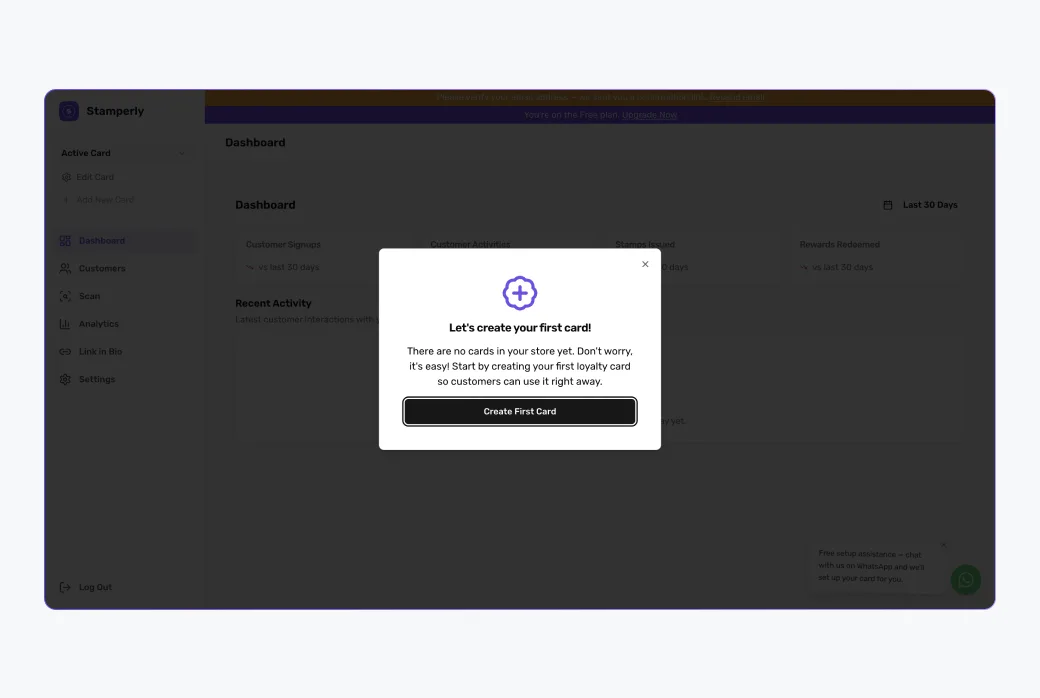
The Design tab controls how the card looks in your customer's wallet:
- Stamp slots: how many stamps complete the card. The default is 10, which works well for most businesses.
- Stamp icons: pick icons or upload your own images (up to 1MB) for stamped and unstamped slots.
- Colors: card background, text, stamp circles, and the stamp area, so the card matches your brand.
The live preview on the right updates as you edit.
Information: texts and expiry
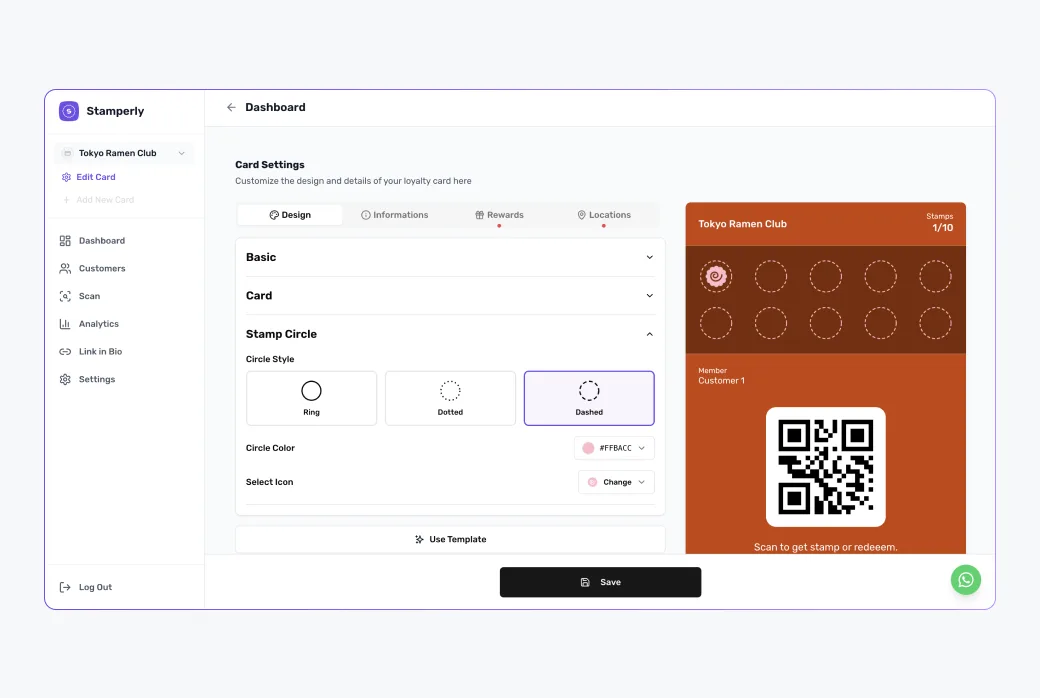
The Information tab holds the card's content: the title, a "how to earn stamps" explanation, your business contact details, and links to your website and social media.
Two settings deserve special attention:
- Card expiry: never, a fixed date, or a number of days after the customer joins.
- Stamp expiry: optionally let individual stamps expire after a number of days, to encourage regular visits.
You can also customize the push notification texts customers see when they receive a stamp or earn a reward.
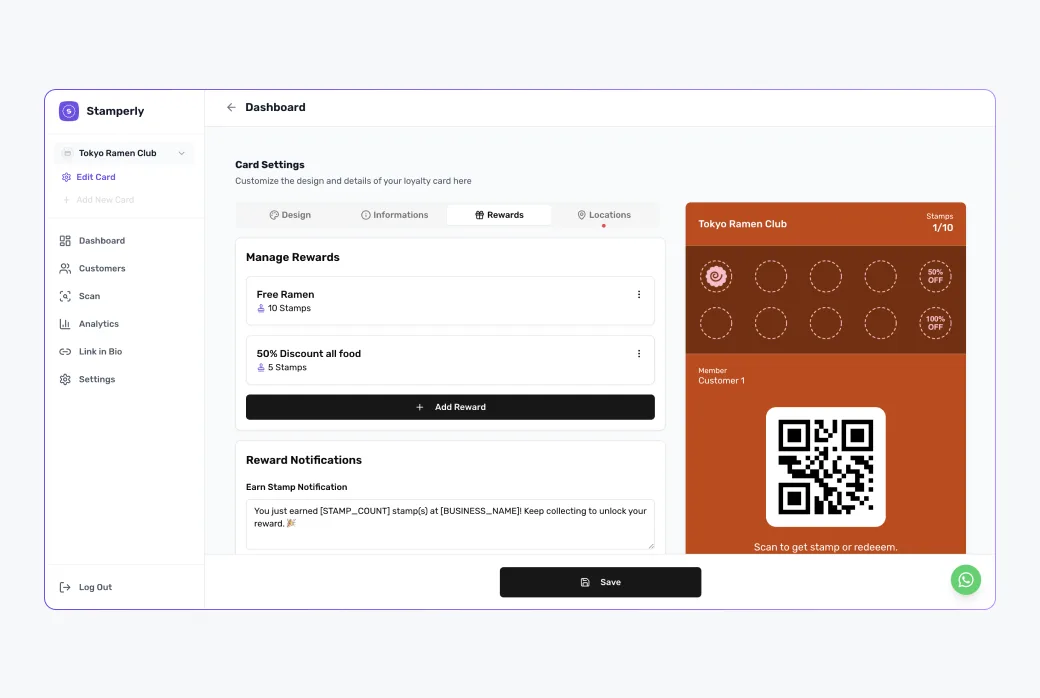
Rewards
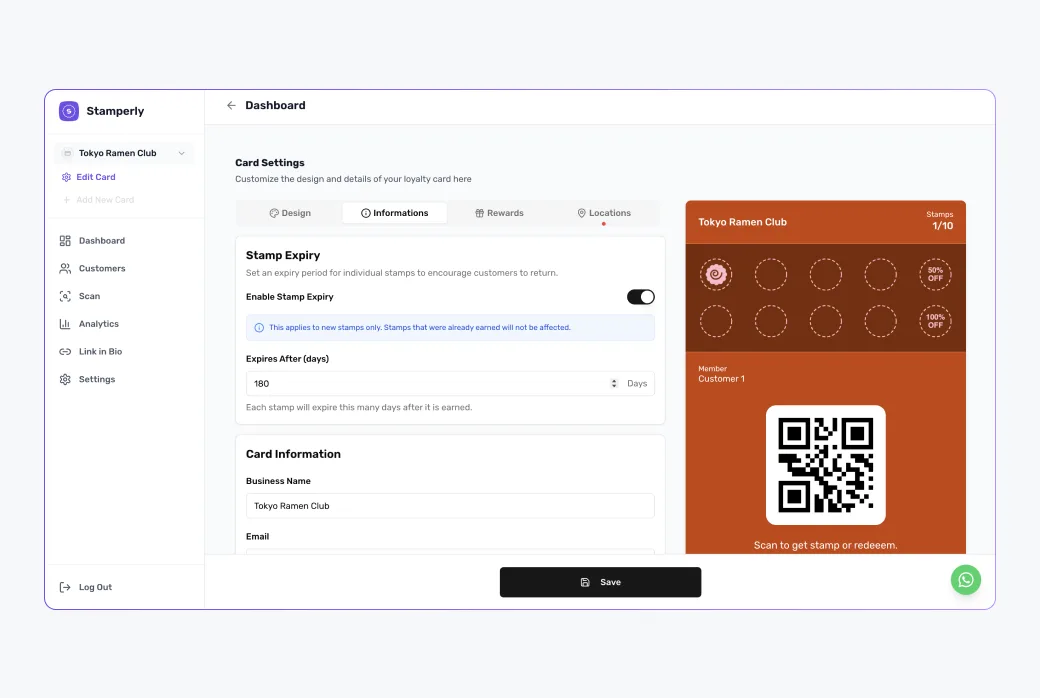
Add one or more rewards, each with a title, description, and the number of stamps required. Multiple rewards let you offer small milestones along the way, for example a free topping at 5 stamps and a free coffee at 10.
Optional extras
- Customer fields: choose whether to collect a phone number and birthday when customers join (birthdays show up on the scan screen, great for birthday treats).
- Custom labels: rewrite any text shown on the card, useful for tone of voice or another language.
- Location: add your address so customers get a wallet notification when they're near your store.
Save and preview
Save the card and check the preview: this is exactly what your customers will see in Apple Wallet or Google Wallet. Happy with it? Time to share it.