Your join link
Every card has a public join link that looks like stmpr.link/your-business/join. Anyone who opens it fills in their name and email or phone number (plus birthday, if you enabled it), and they're in.
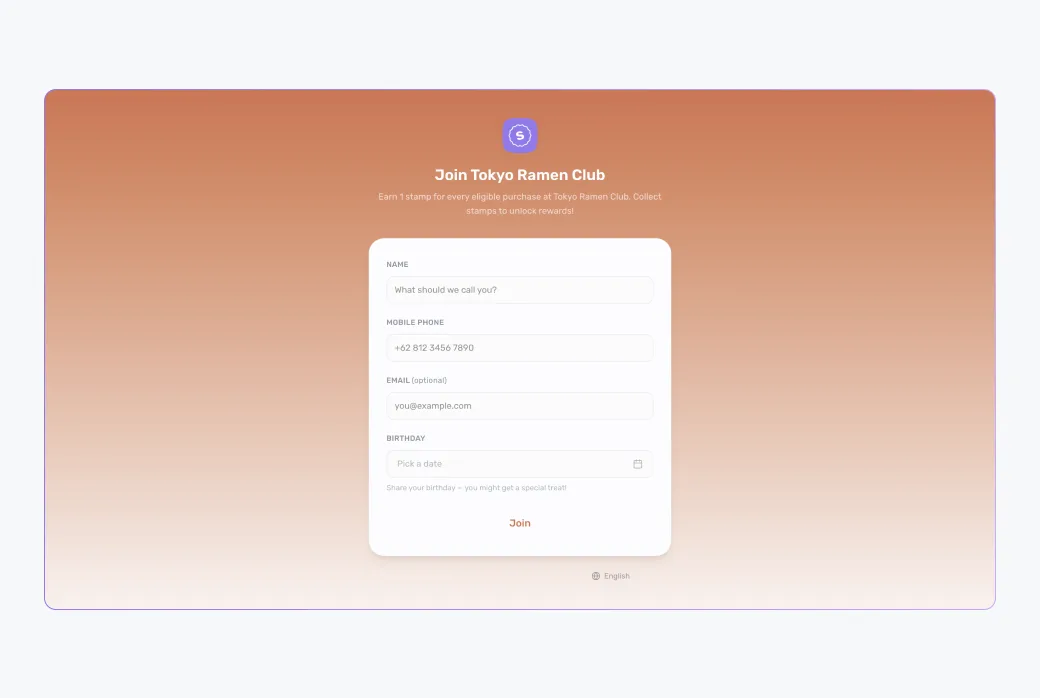
Customers never create a password or download an app. Joining takes under a minute.
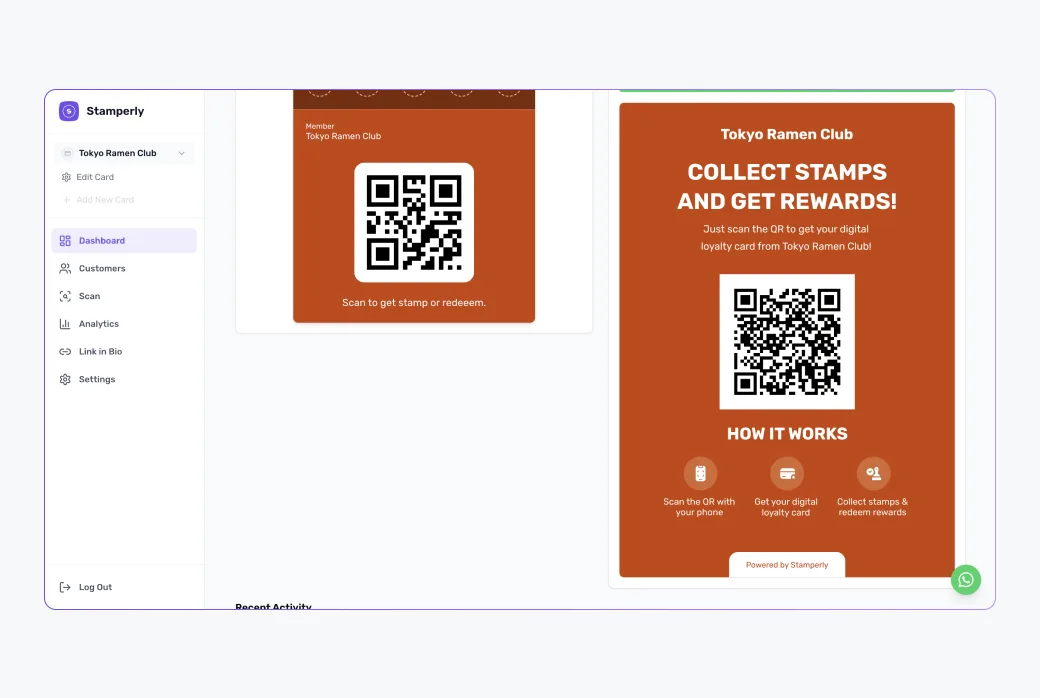
Print the QR banner
The dashboard generates a ready-to-print banner with your join QR code on it. Put it where customers naturally look: next to the register, on tables, on the menu, at the entrance.
What the customer does
1
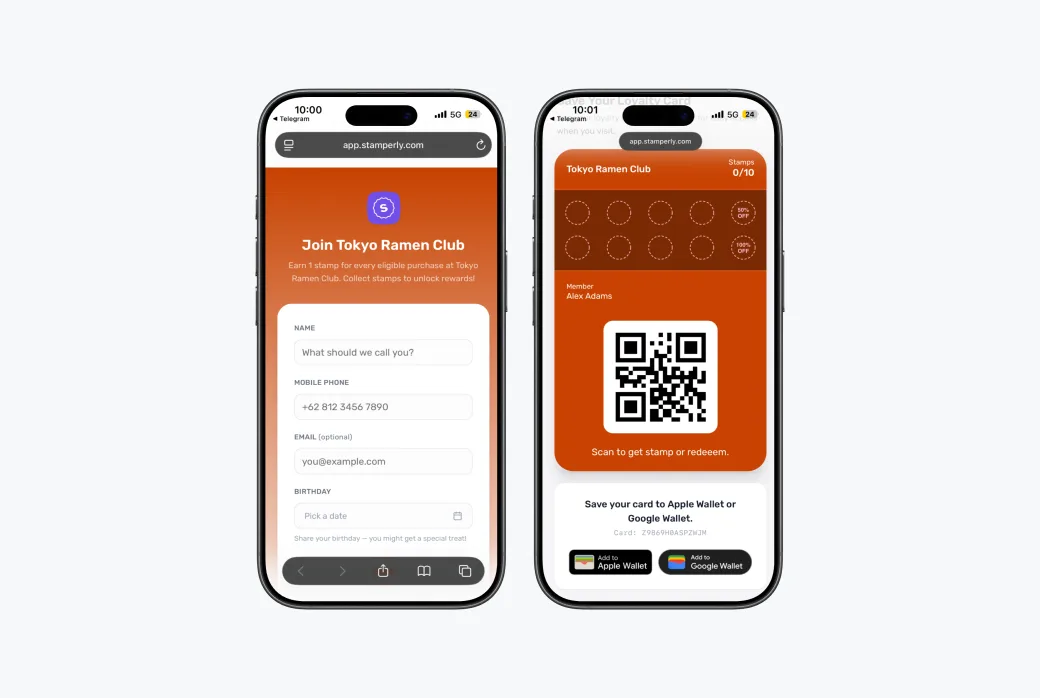
Scan and fill in the form
They scan the QR code (or tap your link), enter their details, and submit.
2
Add the card to their wallet
They land on their personal card page with Add to Apple Wallet and Add to Google Wallet buttons. One tap and the card lives on their phone.
More places to share
- Link in bio: Stamperly's built-in bio page can feature your join link on Instagram or TikTok.
- WhatsApp: send the join link directly to regulars or your broadcast lists.
- Receipts and packaging: a small QR sticker works surprisingly well.